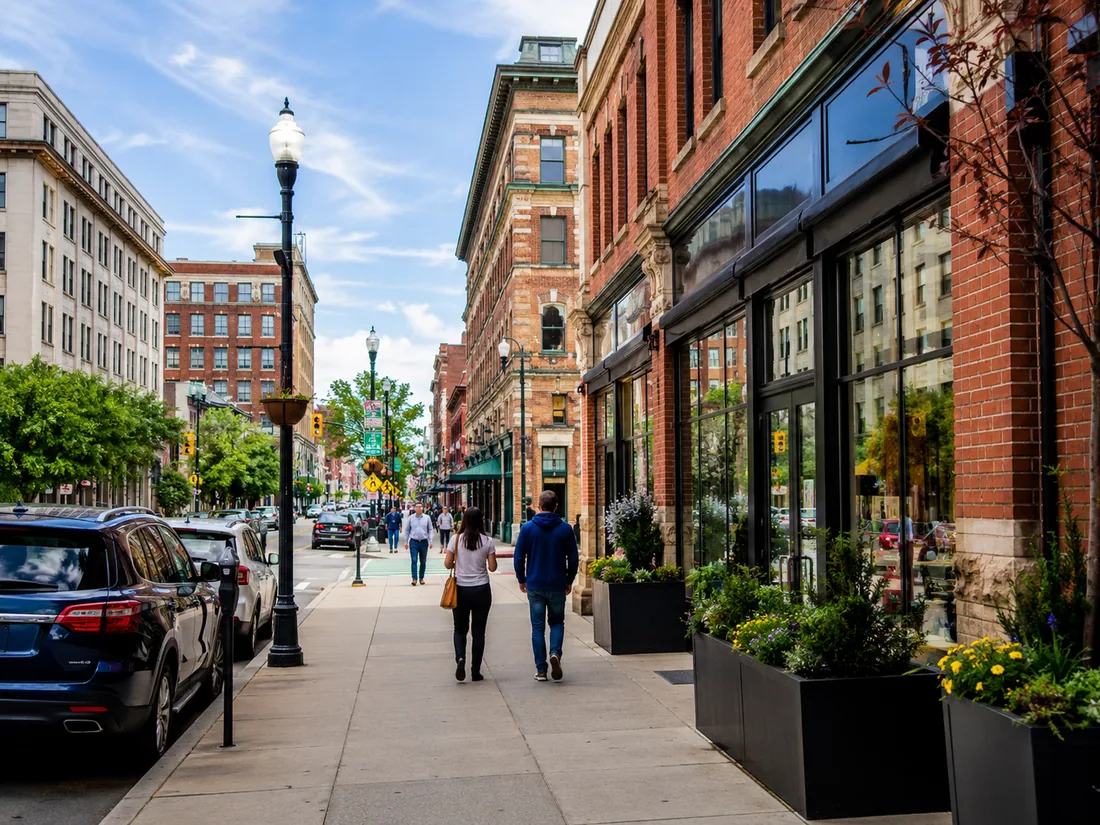
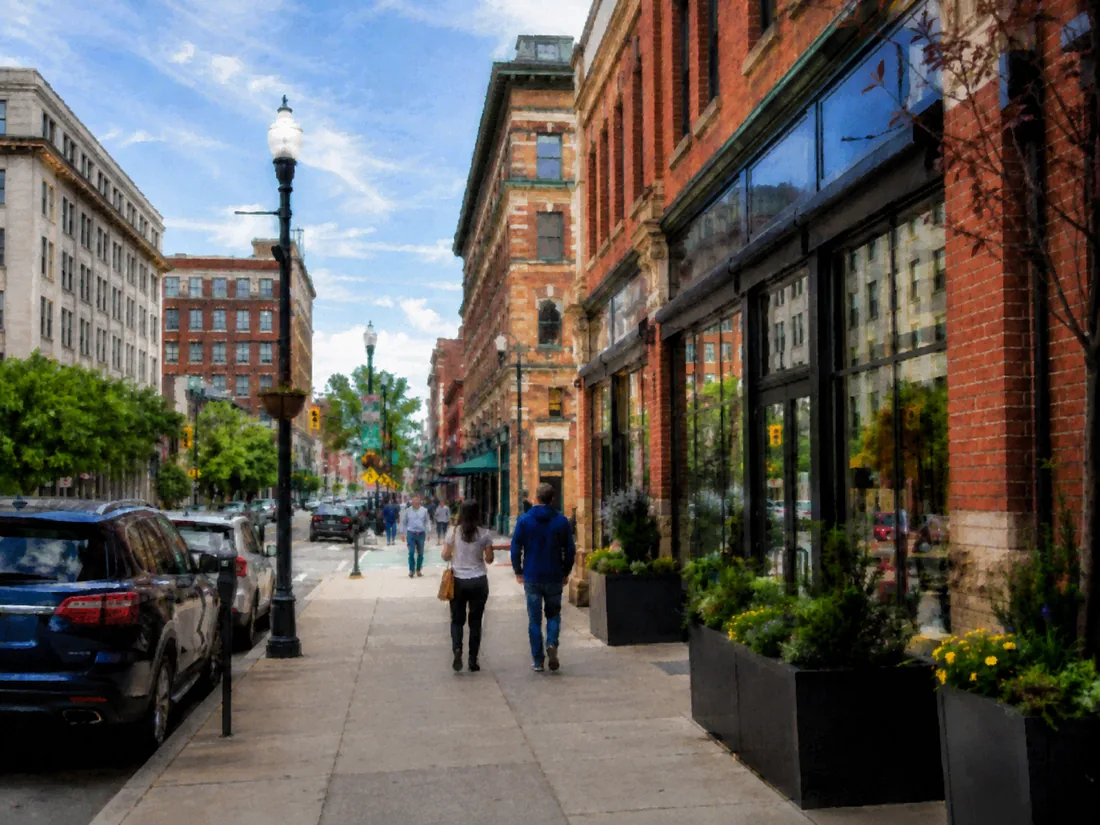
BeforeAfter HD
2x-4xLocal upscaling
HDCleaner image output
FreeLaunch access
Convert image to HD online. Choose a JPG photo, PNG screenshot, or WebP file and produce a clean HD result in seconds.
Best for photos, product shots, profiles, and screenshots.
AI processed locally in your browser. Maximum file size: 5 MB.
Before and after
An HD image converter should do more than stretch pixels. It should make edges, textures, and important details easier to see while keeping the image natural.
How it works
The converter is built for a quick workflow: choose your file, select a scale, and download the enhanced HD result after local processing.
Choose a source file that looks blurry, compressed, small, or pixelated.
Select 2x for a fast HD result, or use 4x for a larger file with more detail.
Save the enhanced image once browser-based processing finishes.
Settings guide
Pick the format and scale that fit your file. Keep it simple.
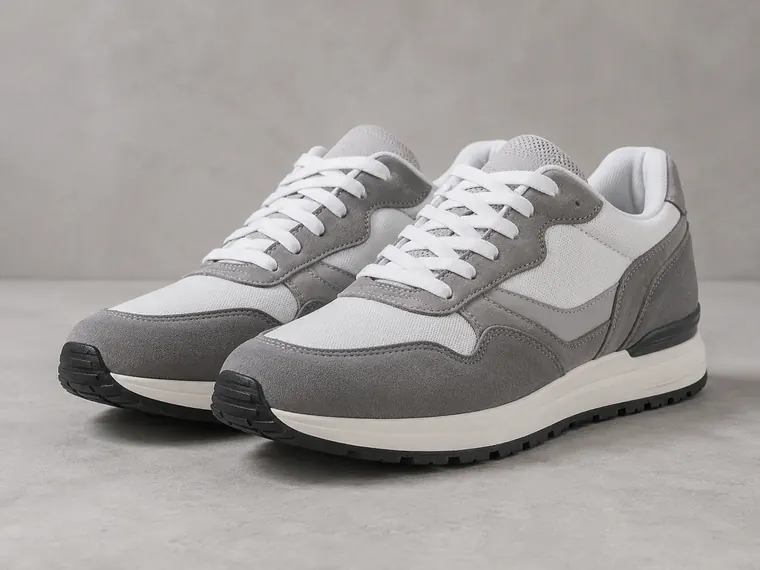 Before
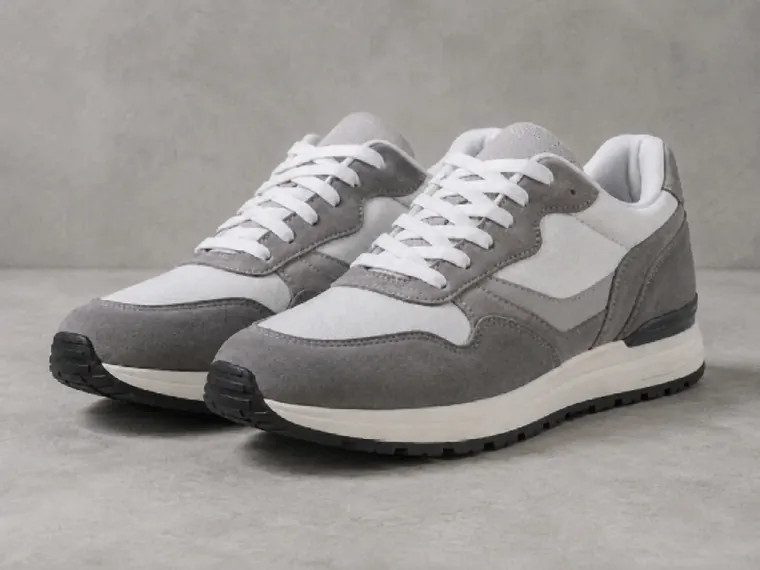 After HD
 Before
 After HD
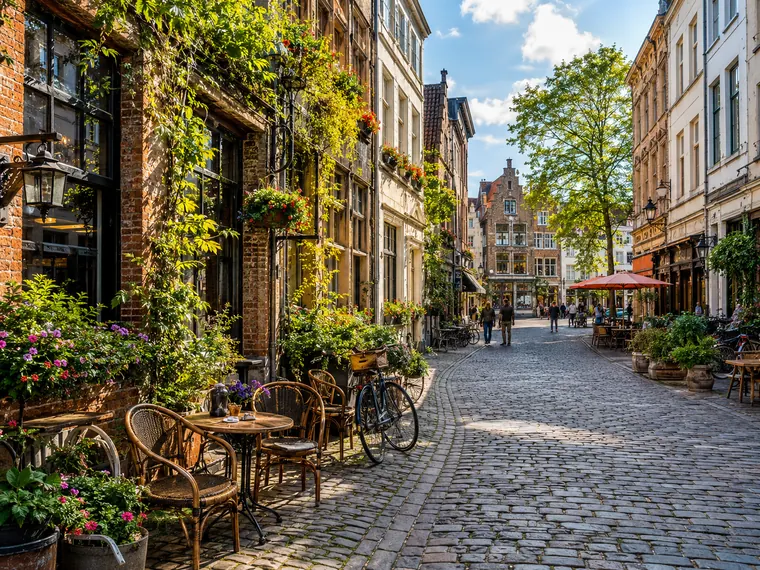 Before
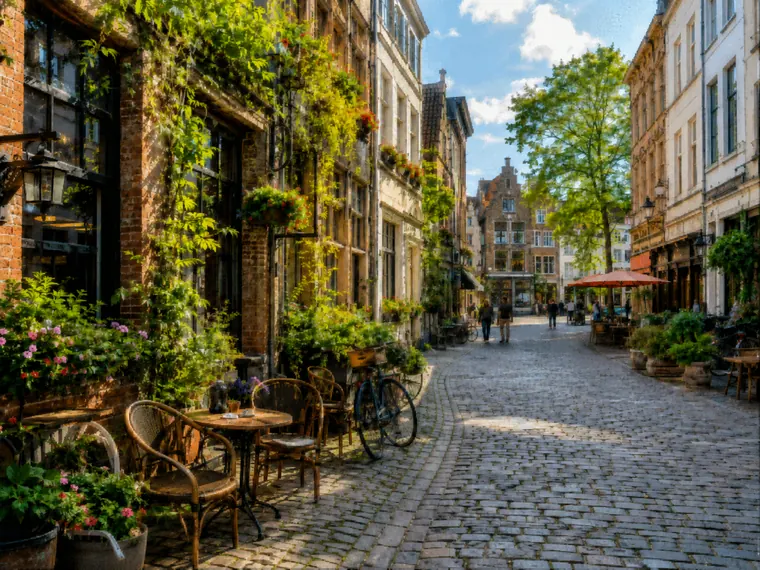 After HD
Use cases
Image HD Converter is useful when you need a clearer picture quickly and do not want to install a desktop editor.
Make scanned or saved memories look clearer before sharing or printing.
Improve small catalog images for stores, marketplaces, and product pages.
Prepare profile pictures, thumbnails, and posts that look cleaner on high-density screens.
Enhance portraits and profile images while keeping the result natural.
Upscale screenshot-like images when the original is too small for a slide or article.
Give smaller AI images a sharper, more usable HD version for publishing.

Guide
An image HD converter increases resolution while trying to improve perceived sharpness and detail. A normal resizer only stretches pixels, which can make a blurry image look even softer.
This tool uses browser-based AI image upscaling and sharpening to help create a cleaner HD image from a low-quality source.
 Before
 After HD
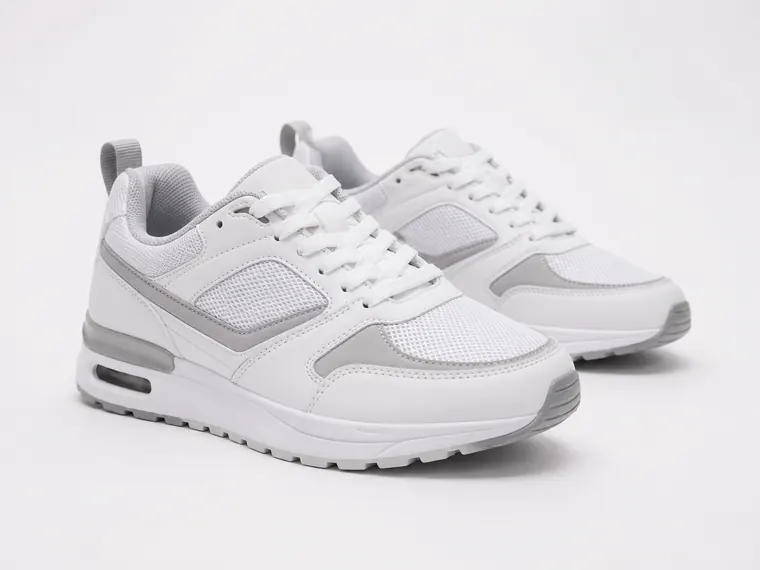 Before
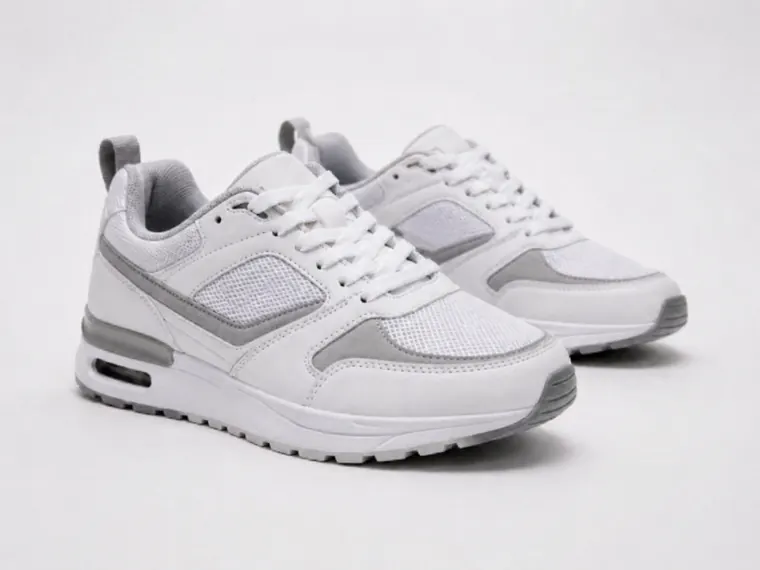 After HD
FAQ
Yes. The converter runs locally in your browser, with no paid AI API required.
It can sharpen many soft images, but no tool can perfectly recover details that are completely missing.
JPG photos work well for product shots; convert JPG to HD online when downloads look compressed.
Choose a file, select the HD scale, and download the enhanced result after local processing.
PNG screenshots work well for graphics; convert PNG to HD online when edges look rough.
WebP files work well for websites; convert WebP to HD online if a downloaded picture looks small.
Start with the clearest source file you have. Use 2x for a natural result, or choose 4x for a larger HD output.
Use the clearest source image you have. Very tiny or heavily compressed files may produce limited improvements.
PNG files are supported. For best results, avoid uploading images with complex transparent edges.
Choose 2x for faster HD conversion. Choose 4x for a larger result when processing time matters less.
It overlaps with an image sharpener, but the main goal is to convert an image to HD by upscaling resolution and improving clarity.
Choose a blurry or low-resolution image and create a sharper HD version directly in your browser.